


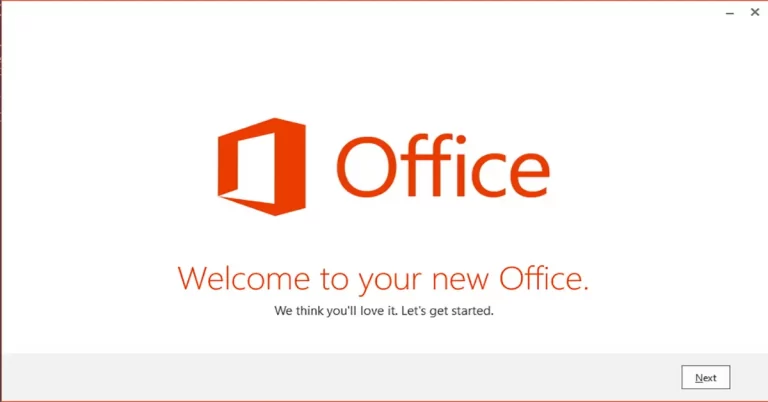
This article explains how to install Microsoft Office 2013 on a Windows computer. Microsoft Office is a suite of applications that includes Microsoft PowerPoint, Word, Excel, and more. Before downloading Microsoft Office Professional 2013, you need to uninstall any trial or old versions you may still have installed on your computer.
What to Know
Once you purchase Microsoft Office Professional and download the Office product key. Detailed guidelines are included in the package if you purchase the application at a retail store or order online. If you purchase directly from Microsoft, you will get the link to your email. There will be an Install Office link on the receipt.
Download microsoft office installers from Microsoft Website or click here
Install Microsoft Office
Go to your computer’s download folder.
Open the folder for the version of Office Professional 2013 that you want to install (32-bit or 64-bit). If you have an ISO file then mount it.
Double-click on the file setup.exe file to run the Microsoft Office professional setup.

Read the Microsoft license agreement, select I accept the terms of this agreement, and then click on the Continue button.

Install Microsoft Office 2013, and click on customize button.

Under installation options, click on the down arrow key and then select run all from my computer.

Click Install Now

Microsoft Office installation is in progress.

Once the installation is done, click close.

Activation instructions
From the Windows start menu click on the start button programs > Microsoft Office Professional 2013, then click on any application in the folder (for example Access 2013, Excel 2013) to open it.

Make sure the option Use recommended settings option is selected, and then click Accept.

Click Next

Select Next

Click next

Select all done

To activate Microsoft Office Professional, click on File and then click on account.
Here you can enter your office key to activate it.

Microsoft Office Professional 2013 is now installed and active on your system.
This article provides information about installing Office 2013 on Windows.


