


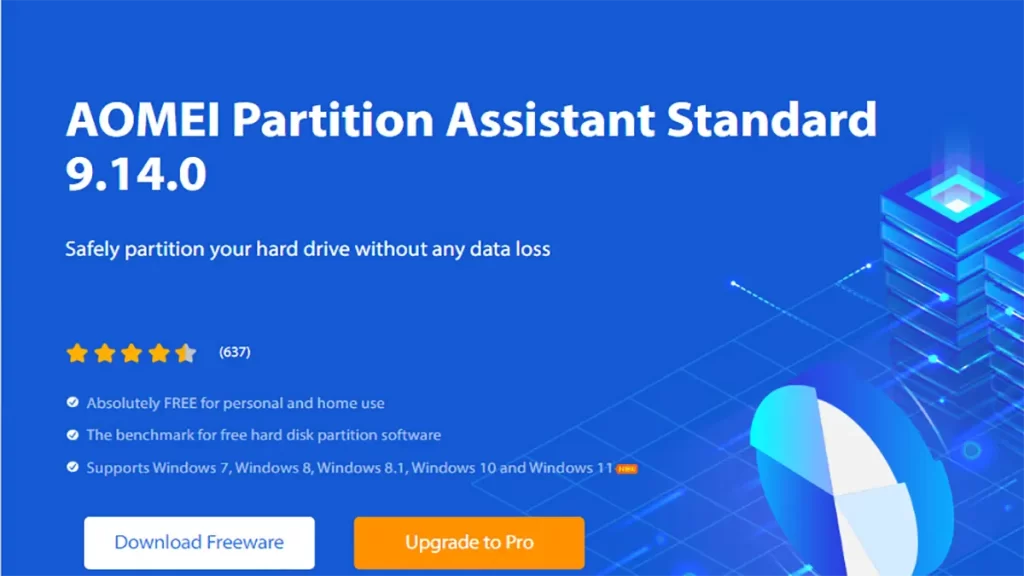
In this article, we will learn how to install AOMEI Partition Assistant. AOMEI Partition Assistant Standard is a free disk partition tool, which has gained a reputation among users worldwide. It comes with too many powerful features that allow you to fully control your hard disk and partitions. For example, the Resize Partition allows you to increase partition size to resolve low disk space problems or shrink disk partition size to build partition size more reasonably. You can flexibly control disk space with marge partitions, create partitions, delete partitions, format partitions and etc.
AOMEI Partition Assistant Overview
AOMEI Partition Assistant is specially designed for system administrators, IT professionals, consultants, and technicians to serve new proceeds streams by supplying charged technical service to their clients. It is an independent and valuable hard disk partition management toolkit. Additionally, it is accessible for internal usage to manage huge distributed groups of computers and servers at multiple locations. How to partition a hard drive through AOMEI partition assistant for free.
AOMEI Partition Assistant System Requirements
Supported OS – Windows 7, Windows 8, Windows 10, Windows 11
Memory – 2 GB (4 GB recommended)
Hard disk free space – 2 GB or higher
Download AOMEI Partition Assistant
Visit the Diskpart website to download AOMEI partition assistant free

Install AOMEI Partition Assistant
Once you download the AOMEI partition assistant, go to your download folder and then double-click to start the installation.

Select the language to use and then click ok.

If you would like to upgrade to the AOMEI partition assistant Pro edition, then go for it or click on skip.

Accept the license agreement, if you want to change the installation path, you can click on the path link to change the installation directory.
Click on the install now button to install the AOMEI partition assistant.

AOMEI partition assistant installation is in progress.

Installation successfully completed, click on Enjoy Now button.

AOMEI partition assistant standard edition.

Related: How to Uninstall AOMEI Partition Assistant


